



How To Use: Event Badge Printing Software
Seamless Check-ins, Happy Attendees, and How to Master On-Demand Printing
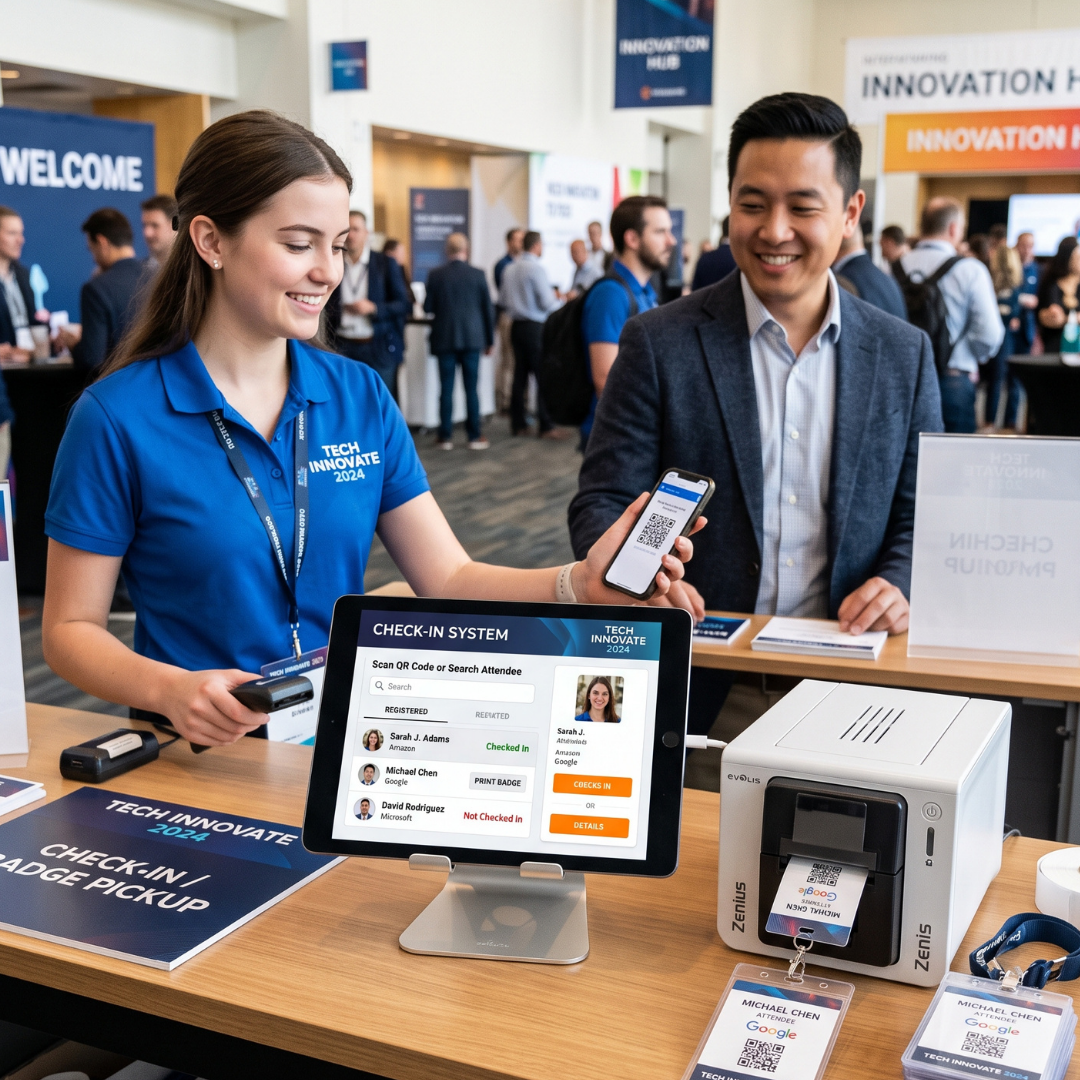
We understand that there’s nothing quite as anxiety-inducing for an event organiser as a bottleneck at the registration desk. The days of pre-printing hundreds of badges, laying them out alphabetically, and frantically searching for a VIP's name tag are officially over. Today, on-demand event badge printing software makes check-in as simple as scanning a QR code.
In this guide, we'll explore top event badge printing software, how they integrate with heavy-hitting printers like the Zebra ZD621 and Epson CW-C4000e, and exactly when and how to set everything up. Leave the knowledge to us.
Popular Event Badge Printing Software
Choosing the right software depends on the size of your event and your check-in hardware. Here are some of the most reliable options on the market:
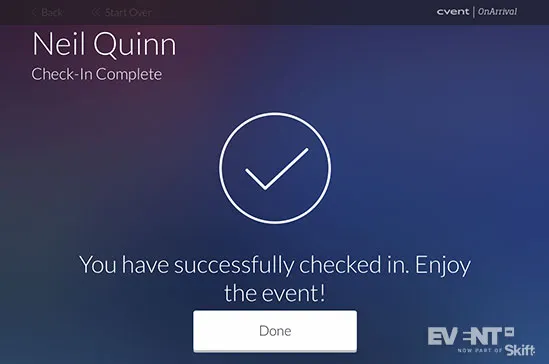
- Cvent (OnArrival): The industry titan, and one that we personally recommend here at Badge Wave. Cvent's OnArrival app is incredibly robust for large-scale conferences. It features native, seamless integration with Zebra thermal printers and handles walk-ins and dynamic badge printing with ease.
- Swoogo: Loved for its flexible API and modern interface. Swoogo partners beautifully with third-party check-in integrations like Fielddrive or Choose2Rent, allowing you to use high-end colour printers like the Epson CW-C4000e with ease.
- Fielddrive: Technically a check-in solution rather than purely a registration platform, Fielddrive integrates with almost any registration software (Eventbrite, Bizzabo, Swoogo) and acts as the bridge to premium printing hardware. They are masters at deploying full-colour Epson setups.
- Zkipster: The go-to for high-end VIP events, galas, and PR events. It focuses heavily on guest list management and fast, sleek on-site printing, usually paired well with Zebra monochrome printers.
The Hardware: Zebra ZD621 vs. Epson CW-C4000e
The software is only half the battle; the printer does the heavy lifting. Here is how the two industry favourites stack up when integrated with your software:
| Feature | Zebra ZD621 (Choose for Speed) | Epson ColorWorks CW-C4000e (Choose for Vibrant Printing) |
| Type | Direct Thermal / Thermal Transfer (Monochrome) | Inkjet (Full Colour) |
| Best For | High-volume, fast-paced events where speed is prioritized over full-colour graphics. | Conferences requiring color-coded categories, dynamic sponsor logos, and premium aesthetics. |
| Integration Workflow | Natively supported by apps like Cvent & Zkipster. You pre-print badge stock with colour branding, and the Zebra prints variable data (Name, QR) in black. | Supported by bridge software (Fielddrive/Boomset). You load blank stock, and the software sends the entire full-colour design to the printer. |
| Speed | Lightning fast (often under 2 seconds per badge). | Slightly longer (4-6 seconds), but massive visual payoff. |
Cvent (OnArrival): How Does It Actually Work?
To use Cvent OnArrival for on-site check-in and badge printing, you must first set up your iOS or Android device and your compatible printer, ensuring they are connected to a dedicated private Wi-Fi network rather than the venue's public Wi-Fi to avoid competing with other attendees' devices.
Once your hardware is ready, launch the OnArrival app and navigate to the settings to configure and connect your printer. From there, team members with a Check-in Staff role can use the app to search for attendee profiles and print badges individually or in bulk. For a more hands-off approach, the app can be set to Kiosk Mode, empowering attendees to quickly check themselves in and trigger their own badges to print.
Additionally, if event organisers need to print badges from a laptop at a different location, they can enable the "Remote Print" feature; this links a dedicated iOS device to a group of printers (a "print pool"), routing the print job to the first available printer at the registration desk.
The Setup Timeline: Countdown to Event Day
Hardware and software integration requires testing. Don’t leave this until the week of the event and cause yourself unnecessary stress. Follow this timeline:
6 Weeks Out: Selection & Procurement
- Finalise your registration software and choose your printer model based on your visual needs.
- Order badge stock and lanyards. If using Zebra, ensure your branded pre-printed stock is ordered. If using Epson, order high-quality blank inkjet stock from us.
4 Weeks Out: Design & Template Configuration
- Log into your check-in software and use the "Badge Designer" tool.
- Map the variable fields (First Name, Last Name, Company, QR Code).
- If using Epson, configure your conditional logic (e.g., "If Ticket Type = VIP, print background red").
2 Weeks Out: The Dry Run
- Connect your printer to a local Wi-Fi network (or via ethernet/Bluetooth) and link it to an iPad running your check-in app.
- Print 10-20 test badges using dummy data. Check for alignment issues, font sizing (is a 20-character last name cutting off?), and QR code readability.
1 Day Before: On-Site Setup
- Set up the printers at the venue. Crucial: Do not rely on venue public Wi-Fi for printers. Use a dedicated router or hardwired ethernet to ensure the iPads and printers communicate instantly.
- Run a final test print from every single kiosk before attendees and staff arrive.

Handling On-the-Day Walk-ins & Edits
The true magic of on-demand printing is how well it handles chaotic situations. Here is how your setup can manage the unexpected:
Walk-In Registrations
Instead of manual data entry at the desk, set up a QR code on a stand that says "Not Registered? Scan Here." The walk-in scans it, fills out the registration form on their own smartphone, and pays. Within seconds, their data syncs to the cloud, pushes to the check-in iPad at the desk, and they can print their badge instantly. No bottleneck, no stress.
Typos and Title Changes
If an attendee arrives and says, "My company name changed," or "My name is misspelled," the fix is instantaneous. The staff member pulls up the attendee's profile on the check-in iPad, edits the field, and taps "Print." The Zebra or Epson churns out a corrected badge in seconds.
Lost Badges
If an attendee loses their badge after lunch, search their name in the software, tap "Reprint," and hand them a new one. Most software will track this as a reprint, invalidating the old QR code so someone else cannot use their lost badge to access VIP areas.
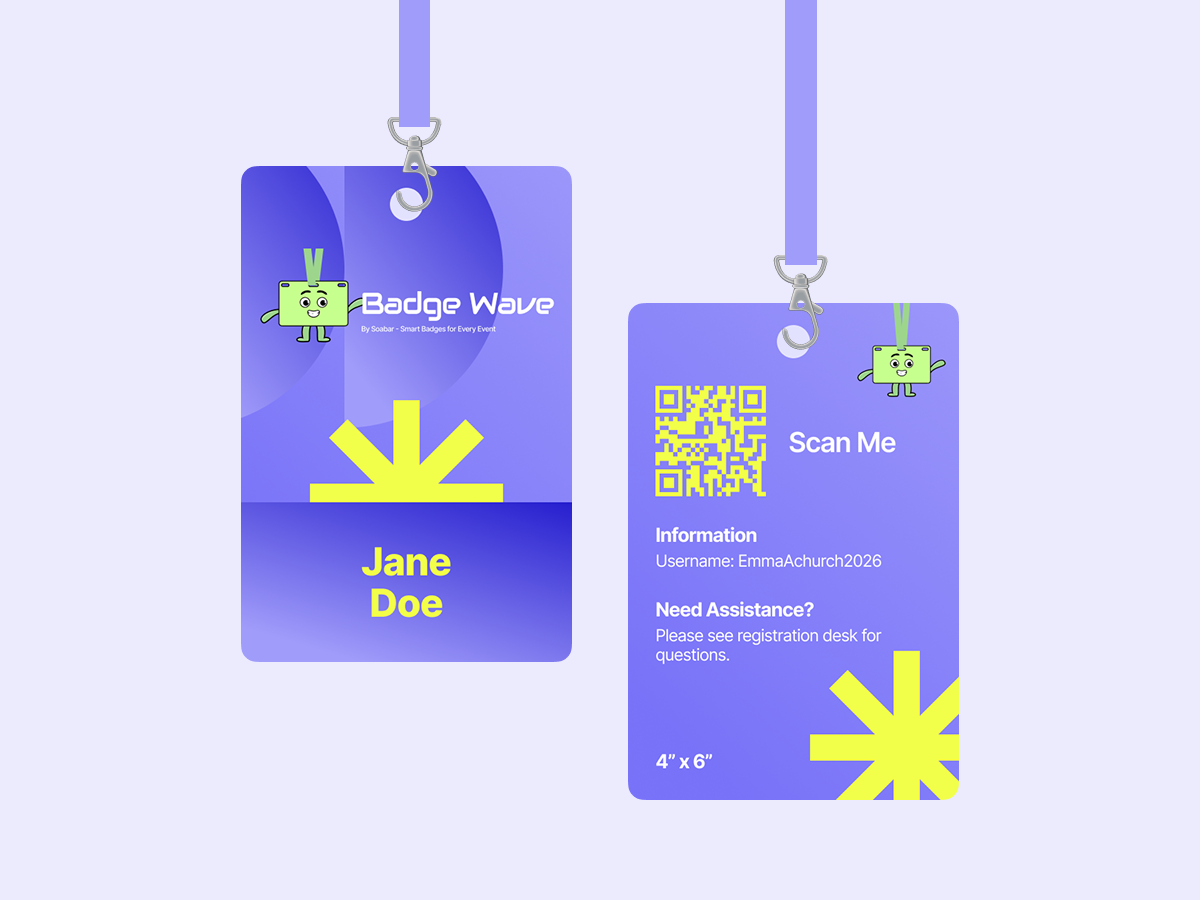
💡 Ready to start the badge printing process?
With the right mix of intuitive software, a trusty Zebra or Epson printer, and a solid setup timeline, your event registration will be the easiest part of your attendees' day.
Browse our range black and pre-printed, full-colour card stock, event badge printers and accessories here. Can't find what you're looking for? Give us a call or fill out an enquiry form and we'll back back to you in a flash!
- August 14, 2026
FAQS
Frequently Asked Questions
This will depend on what you want to print onto your badges on the day of your event. Our thermal tickets are designed to be printed on the Zebra range of printers, namely the ZD621 and GK420D. These printers will print your data and text in a single colour. Our Inkjet tickets are designed to be printed on the Epson C3500 and C4000 range of printers, which both allow for full-colour on the day printing.
Direct thermal technology uses a heat-sensitive coating to create clear, high-quality text or images from a single-colour printer, offering a simple and efficient printing solution without the need for ink or toner. Our Inkjet material is specially coated to allow a CMYK print process in full colour.
Typically, our on-site printers will accept any badge width up to a 4” wide. The most common size for an event badge is 4” x 12”, which folds to 4” x 6” double sided.
You can view our artwork requirements on the downloadable, editable templates on each product page.
Yes this is possible! We would just need a good understanding of your event, your branding guidelines, what is required to be printed on the badge and the logo(s) that you wish to feature. Email us at: BadgeWave@soabar.co.uk